

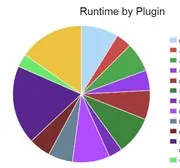
Website Tips 4 U currently has 25 active plugins. Whilst this can be a manageable number, it would still be nice to be able to get by with fewer plugins to reduce page loading times.
In fact I use a Performance Profiler plugin to check which plugins might take too long to load and have thus eliminated where possible the most taxing plugins time-wise.
When this post was originally published, the Pingdom Speed Test recorded the following for Website Tips 4 U but it would be nice to reduce the load time further.

Why You Might Want to Replace a Plugin with Code
- Size of plugin code
One plugin that I have replaced recently had over 2,000 lines of PHP code, more than 50 lines of style code and about 25 lines of JavaScript code.Many plugins come with at least 3 separate files: the PHP file, a style sheet and a JavaScript file.
- Speed of page load
If you have been using one of the tools for checking your page speed, then you will be familiar with the need to reduce the number of style sheets and JavaScript files used.Most plugins use their own style sheet of course. You can always find the plugin’s style sheet and include the styles in your own child theme style sheet but then you would need to mess with the code to deactivate the plugin’s style sheet. It is far easier to either continue with the plugin or follow a copy-and-paste guide like this to replace the plugin’s functionality altogether with code.
How to Replace a Popular Posts Plugin with Code
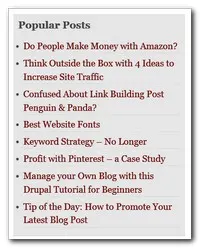
One of the simplest solutions that I have been using is based on some code available here. I have modified it to suit myself and you can do the same:
Display Popular Posts According to Number of Comments
Caution: One downside to keep in mind if you are displaying the most popular posts by number of comments, is this:
The post that receives the most comments will bubble to the top of your popular list. This seems well and good at first but after a while you might find that this top post is the one that commenters target. If people are looking just to leave comments as fast as they can in order to get links back to their site, then they tend to go for that top post. As a result, it can be harder to attract comments to other blog posts. You can instead display posts by number of views without a plugin, but it tends to be a little more complex.
If you are happy to display posts by thee number of comments received then here are the steps to follow:
- Ensure that you make a backup of your functions.php file using a tool such as filezilla.
I can’t stress this enough!!
The functions file can be a touch finicky and will crash your site completely if there is any kind of error in the code. But if any coding error trips you up, you can then upload the previous version of your functions.php.
By the way, it is always preferable to have a child theme and thus edit the functions.php file in that folder.
- Add the following function code underneath the existing code in your functions.php file but just before the closing php tag:
function wpb_most_commented_posts() {
// Buffer output
ob_start();
?>
<ul>
<?php
// Specify how many popular posts to show - 10
$query = new WP_Query('orderby=comment_count&posts_per_page=10');
// Display each post in list format
while ($query->have_posts()) : $query->the_post();
?>
<li>
<a href="<?php the_permalink(); ?>" title="<?php the_title(); ?>"><?php the_title(); ?></a>
<span>
<?php
// Display how many comments each post has received
comments_popup_link('', '', '(%)');
?>
</span>
</li>
<?php
endwhile;
?>
</ul>
<?php
$output = ob_get_clean(); // clear buffer
return $output;
}
-
Add the following code beneath your function (again just before the closing php tag to create and enable a shortcode that uses this function.
// Create shortcode add_shortcode('wpb_most_commented', 'wpb_most_commented_posts'); //Enable shortcode to run when added to a text widget add_filter('widget_text', 'do_shortcode'); -
Add a text widget to your side bar and enter the shortcode:
[[wpb_most_commented]]
Modifications to the Post Popular Posts Code
You can modify the output to suit yourself. For example:
- You can change the number of posts displayed as preferred.
- You can style the output by creating a class for the <ul> tag.
Or you can use an example from here, - I have modified the original function code to display number of comments a post has received only if there have been comments. For example:
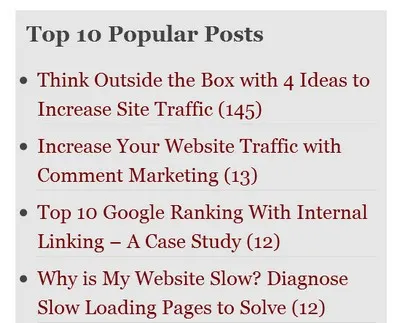
The original code allows you to show either:
- no comments
- 1 comment or
- number of comments
You can alter your code to do the same if you like by referring to the example in the original function code.
One Less WordPress Plugin
Once you have tested the code, and styled the output the way you want it to appear, then you can deactivate your previous popular posts plugin.
Which other plugins would you like to replace with code?
~~~~~~~~~~~~~~~~~~~~~~