


There is so much debate about whether or not you should display the date in your WordPress posts. The post date of publication is in fact displayed by default.
However, many bloggers prefer to disable this option. Their decision can be for a number of reasons:
- The search engines pick up the date that appears on the post which means it is displayed in the search engine results pages (SERPs). If the date is a few years old, then this can be off-putting for readers who subsequently choose to click on something more recent.

-
In many cases, they feel that it ‘dates’ their content. If the content is still relevant then they don’t want to put off prospective readers.
-
In some niches, the date might be irrelevant. If the content for your niche is ever-green, then a date might not serve a valid purpose. For example, if you have a blog that talks about ties, then a post about how to tie a tie will be just as relevant today as it was 2 years ago.
The Case for Including the WordPress Post Date
I definitely prefer to provide a date if the content can be ever-changing. For example, SEO is one topic that can change quite significantly after each Google algorithm update. So if I am researching best SEO practices, then I know that I want to read content that has been published within the last 6 to 12 months, not 2 years ago. So, in a blog such as websitetips4u.com, I think it is courtesy to provide a date.
BUT, and I emphasize ‘but’, older posts that have been updated should be allowed to be seen as current. By default they will show the original date of publication.
A WordPress Post Date Solution
So, many solutions on the web show you how to replace the default with the last modified date instead. The only problem with this is that there is no alternative provided. In other words, the published date is replaced by the modified date. If a post has not been modified since it has been published, then no date is displayed.
The best solution, in my view, is an either or:
If the post has been modified then
display the modified date
else
display the published date

Professional WordPress: Design and Development
Changing the Post Date in Genesis
If you have a Genesis theme installed, then the simplest method, to change the post date format, is to install the plugin called Genesis Simple Edits. This provides you with the easiest way to modify post meta data. Once you activate it, you will see something similar to this screenshot:
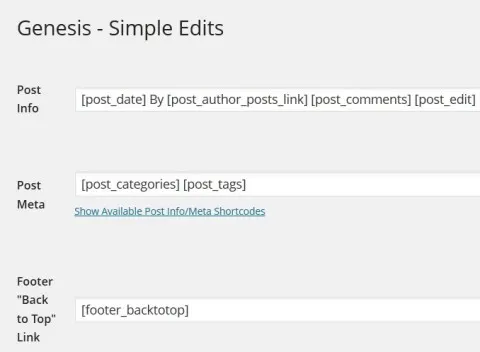
If I remove [ post_date ] then no date at all is displayed. (here is a solution for those who want to remove the date altogether.)
But I am going to replace [ post_date ] with my own date code thus:
- Delete post_date and its opening and closing square brackets from Post Info in Genesis Simple Edits and then save changes.
- Open Genesis Simple Hooks.
I already had the Genesis Simple Hooks plugin installed. This plugin provides a fantastic way to add snippets to your theme. - Scroll down to the
genesis_after_post_titleHook. - Add the following code:
<?php
$published_time = get_the_time(‘U’);
$last_updated_time = get_the_modified_time(‘U’);
if($last_updated_time != $published_time) {
echo “<div style = ‘font-size: 80%’>Last updated : “;
the_modified_time(‘j F Y’);
echo “</div>”;
}
else
{
echo “<div style = ‘font-size: 80%’>Published : ” ;
the_time(‘j F Y’);
echo “</div>”;
}
?> - Save your changes in Simple Hooks.
- Refresh your page (empty the cache if need be).
You should now see either a published date or a modified date like so:


You can of course play around with the wording that precedes the date so that it suits your blog or your taste.
I hope this helps all those who have been looking for code that would give an alternative.
~~~~~~~~~~~~~~~~~~~~~~~~~~
Teaser image By digitalart, freedigitalphotos.net